
Trading VPS Perfomance Tweaking
As far Algo Trading is involved, performance regarding your Windows VPS, speed and efficiency are of the utmost consideration. You need a fast system in place because a slow VPS influences how many instances you can run and even make those running to lag. I will be straightforward and tell you exactly what I use and which helps me run multiple instances with ease. Read on as we provide essential software and techniques for enhancing your Windows VPS performance to get it zooming like a rocket: Mem Reduct for cleaning RAM, CCleaner to optimize the system, Disk Cleanup, and a few other tricks that will push up its speed.
But remember, you cannot expect a 512MB RAM VPS to perform like a super computer. It doesn’t work that way, you get what you pay for, this blog is to help you optimise your VPS to perform at its maximum speed making you able to run more Broker instances on that same VPS which was lagging before. This help me speed up my VPS to 100% plus of its performance and i am exited to share with you
Key Factors Affecting Performance
Unfixed memory leaks, fragmented disk space, and overrunning processes can decrease it in action. When very effective cleaning approaches are implemented, not only will you boost speed but also attain fluid operation.
RAM Usage: The more memory-intensive applications you run, the more RAM you consume. If too many applications are using RAM without being cleaned properly, your performance takes a hit.
Disk Fragmentation: Over time, files become fragmented, leading to longer retrieval times as the disk works harder to locate what it needs.
Background Processes: Many applications running in the background can consume resources, reducing available RAM for the apps you actually want to use.
Lets get started, RAM Cleanup
First and foremost, lets take a look at how to clean our RAM. This is what I directly use on my VPS and i am able to run more than 40 Broker instances same time on my 4GB RAM VPS, that is quite intense since most of these EAs I run trades a lot. Lets get to it. We will use a tool called MemReduct. Follow this step below:
Download and Install: Start by downloading Mem Reduct from the official website. Installation is straightforward; simply follow the on-screen instructions.
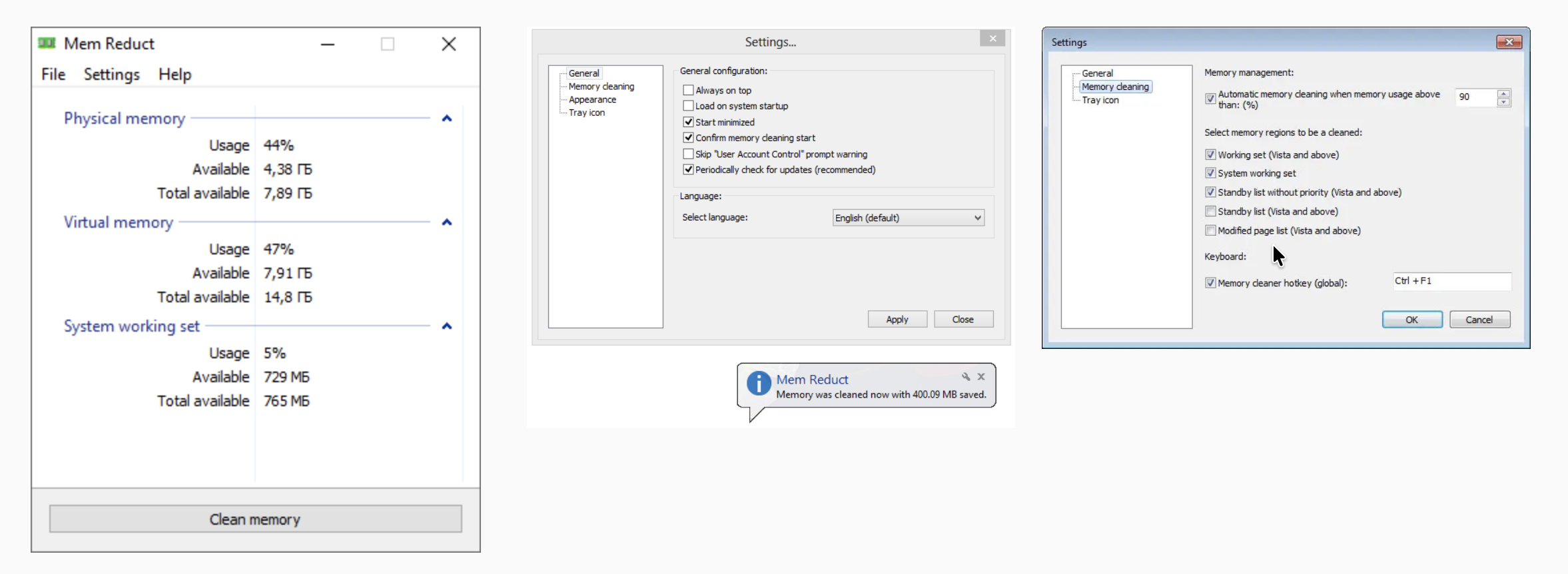
Run the Application: Once installed, open Mem Reduct. You’ll see a user-friendly interface indicating current RAM usage.
Memory Cleaning: Here, i prefer using auto cleaning which doesnt require you to clean the VPS by yourself, you can use time when you schedule it to run at some time interval or use it based on percentage, for example, when the RAM exceed 50%, it cleans it automatically. You can set it to any percentage you want.
Setting Up Auto Clean: Go to settings on the app page and at the General tab, check Load on System Start-up. Next, go to memory cleaning tab and select whether you want percentage or time, select above 50% which I normally use or you can also select 40% which is okay too
Next, Lets clean the system Junks
Another powerful tool in your arsenal is CCleaner, renowned for its ability to clean up junk files and optimize system performance.
Installation: Download CCleaner from the official site. Be cautious about installing any additional software offered during the setup.
Run a System Scan: Open CCleaner and perform a scan to identify temporary files, browser caches, and other unnecessary data cluttering your disk space.
Clean Up: After the scan, CCleaner will display the items it can safely remove. Review the list and confirm the cleanup operation.
Registry Cleaner: CCleaner also includes a registry cleaning feature. Use this cautiously, ensuring to back up the registry before making changes.
Start-up programs: A times, start-up programs or programs which run at start-up can leave processes which may be using your VPS resource
Others: This tool can help you boost your VPS in other aspects. Explore more. This tool can be used to hibernate programs using up most resources
CCleaner helps a lot in taking care of junks and other things which are not needed and which may cause your system lag but another tools which we can use which doesn’t require us to install additional software is Disk Cleaner utility which comes pre-installed. This is especially useful if your VPS has limited disk space, as it ensures that you aren’t bogged down by files that aren’t needed for regular operation.
Running Disk Cleanup
Accessing Disk Cleanup: Type “Disk Cleanup” in the Windows search bar and press Enter. Select Drives: Choose the drive you want to clean (usually, C:).
Select Files to Delete: Disk Cleanup will find files that can be safely removed such as temporary files, system files, Recycle Bin contents, etc.
Clean Up System Files: For a more thorough cleanup, select “Clean up system files,” which provides additional file categories for removal.
Additional Tips to Enhance VPS Performance
Uninstall Applications That Are Not in Use: Resource freeing would result from the removal of software applications that are not needed.
Disable Services Not Required: Go to the Services application (type services.msc in Run) and disable those services which your VPS does not need.
Update Software Regularly: An updated operating system and all applications help in keeping optimization and performance.
Conclusion
Boosting the performance of your Windows VPS doesn’t have to be a daunting task. By utilizing tools like Mem Reduct, CCleaner, and the built-in Disk Cleanup, you can significantly enhance your system’s speed and responsiveness. Regular maintenance is key; consider setting aside time each week to perform these optimizations.
admin
Writer at SP Traders Hub. Sharing insights on trading strategies, market analysis, and algorithmic trading.